Showing posts with label Google Chrome. Show all posts

Thursday, May 1, 2014

Alternate Browsers - Installation

Because of the Security Flaw in Internet Explorer, it has been recommended across the board, that anyone using the Internet use an "alternative" browser.

Here are some instructions for installing both Google Chrome and Mozilla FireFox.  I prefer Chrome, because it is so fast...but I do know that FireFox users are very loyal, and they don't like to switch for any reason.

So for the time being, if you don't have another browser installed...here are some options:

How to install Google Chrome:


How to install Mozilla FireFox:

Also...if you MUST use Internet Explorer... you may continue to do So, but you need to disable Flash.

This will greatly limit your activity...as many sites utilize flash player.  But it's still possible.

To disable flash you go to: Settings -> Manage Add-ons, then select Shockwave Flash and click the disable button.


Monday, March 3, 2014

Campus Update: Clear your browsing history.

This past weekend, Infinite Campus, ran an upgrade and to be able to log in and use the "new" version of the website, they have asked that users clear their browsing history and cookies.

I have helped a few staff members do this already this morning, but just in case you haven't done it yet, and you would like to do it yourself (It's not difficult), I thought I would lay out the steps needed in this blog post.

 I am going to show the steps in google chrome.  The chrome browser seems to be working with this update.  I had a teacher try Internet explorer earlier, and it wouldn't work...we tried chrome, and were successful.  However, there is a similar procedure for Internet explorer.

#1  Go click on the menu button (top right of your screen) in the chrome browser.

The Little Box with the 3 Horizontal lines is the menu button
 #2 Go down the drop down list, and select "Settings".  This should bring up the Settings in a separate tab.

#3 On the top left of the page, select the History button.


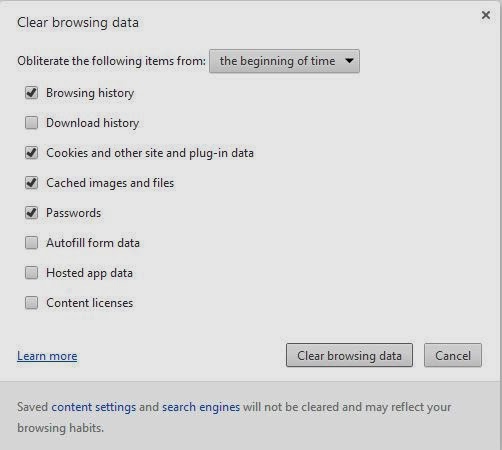
#4 Near the top, on the main page click the "Clear Browsing Data" button.  This will bring up a "pop up" window for clearing your browser data.


#5 In that window, select the drop down for 'Obliterate the following items from:' and select the option 'the beginning of time'.


#6 Ensure that the following items are checked: 'Browsing history' and 'Cookies and other site and plug in data'.  (NOTE:  You can choose to select and delete other items such as: downloads, passwords, etc... but you don't need to.  The only ones that NEED to be selected are History and Cookies)

#7 Click the button that says 'Clear browsing data'.  You will probably need to wait a minute or so until the data is cleared from the machine.

 And that is all you need to do!  Your history and cookies are cleaned up, and you should be able to successfully run the "new" version of Infinite Campus now.

If you continue to have problems, please don't hesitate to contact me, and I will endeavor to get you back going again.

Sunday, August 11, 2013

Preperations are underway!

The new school year is bearing down on us. (Can't believe it will be here in a week!)

Tech office has been very busy.

Sophomore through Senior computers are all loaded and ready to go, except for the installation of forticlient.  We will be installing this on those machines this week.

Freshman computers are in, and I am working on completing the image for the new machines.  As soon as that is done, we will start duplicating and deploying them.

The incoming freshmen will be issued new HP laptops...HP 3125 machines.  We hope they will be a bit more dependable and sturdy than the older Acer machines, which are a good machine for the cost, but they have had some issues with screens cracking, and keyboards losing keys, and things of that nature.

Changes:
Students no longer has Smart Synch program on their machines.  The program was out of date, and unsupported by the developer.

All student machine will have Google Chrome installed on their machines this year.

All student machines will be joined to the domain, and log in to the server as a user.  In the past few years, they were technically "guests" on the system.  This should be helpful, as changes can be made easier to the machines.

All student machines will run the State's recommended "Symantec" anti-virus protection program.  This is a better, and more up to date antivirus program.  It also updates frequently, and will do a better job of protecting the machines from viruses.

All student machines will have "Forticlient" software installed for off-site filtering.  Previously, we had a separate program called "Cybersitter" that we ran on the machines.  Forticlient will be a good change, as it connects automatically with the schools Fortinet Web Filter.  So essentially the students will have the same filtering on the machines when away from the school, that they have at the school.

Mobile Labs
-We will have 2 functioning mobile labs in the school this year.  1 will be a standard laptop cart, with 26 machines running Windows 7.  The second mobile lab will be a mobile Chromebook lab.  We have ordered two new carts for the mobile labs, which will be nice.

I'm excited to see how the students respond to the chromebooks.  They operate on a solid state drive, meaning that the hard drive doesn't "spin".  This allows them to run at a lower temperature, and ensures a much longer battery life.  I'm sure many have heard that the Sioux Falls School District is moving to Chromebooks for all it's High School students.  If we have positive results and issues with mandatory state testing are worked out, this could be a possibility for Elkton students in the future.

-Another change we will make with the mobile labs is that grades 5 through 8 will be assigned a specific machine.  Each user in these grades will always use the same machine number.  Be it number 5, or 13, or 26... That way, we will save memory on the machines (by not having multiple 'users' log in to each machine), and also we will be able to know who was using what machine.  The number will be the same for each lab, so if a student is assigned #5...they will get the #5 from the Windows 7 lab, and the #5 from the chromebook lab.

Student Log-ins
-All students grades 5-12 will have their own network ID and state e-mail account.  This will give them access not only to e-mail, but also to be able access and use google drive and Microsoft 365.  Both of which are provided by the State.

-Students K-4 will continue to be able to use a general "student" log in.  If a staff member would like their students to be on the state e-mail system, this is something I can do for them, but it is not required.

Other than that, we need to install Windows 7 on 4 new machines for the Roland Colony and we are ready to go.

We have a great school year ahead of us!  I'm looking forward to working with you all, and also getting to know our new staff members.

A reminder, if you ever would like me to help learn how to use a new product or device, or anything of that nature, I would be glad to help you out.  (assuming I'm familiar with it, and if I'm not, I'm willing to learn)

Thanks for all your help and patience in the past year (and it the coming year).

Tuesday, May 14, 2013

Tuesday Tidbits: IE and IC not 'playing nice'

Hi everyone!  Hope your Tuesday is going well!

Lately, I've been getting a number of teachers who are having trouble saving their assignments in Infinite Campus.  They put the assignment in, and the details, and the points and everything else, and then they click "Save" and.... nothing.

A few months ago.... there was a message that came across the Tech Director Listserv that addressed this problem, and while no one had a real solution.  Several people mentioned that they were having similar problems.

It was also discovered that this problem was limited to Internet Explorer.  If a staff member had Google Chrome or Mozilla Firefox installed, Infinite Campus worked fine.

About a month ago (give or take a week or two)... Mrs. Hemmen was our first staff member to go through this.  We couldn't get Internet Explorer to work no matter what, so I installed Google Chrome on hers and away we went.

A few weeks ago, I e-mailed the Tech Guy who had started the question and asked if he ever got an answer.  He said he did not, and that he just installed Chrome whenever someone had a problem.

Today, I helped a couple other teachers with this... and decided to send my own message over the Listserv. The answer.... "It's an Internet Explorer problem".  One tech person said they talked to Campus and they(Campus) claimed that Firefox and Chrome were fully supported, but Internet Explorer not so much.

So.... You have 2 options

1.  Have me install  Google Chrome on your computer.  You can use it to basically "replace" Internet Explorer if you like (it is faster).  Note:  I use Chrome almost exlusively at home and at work.  It's faster, more secure, and it works better with more websites.  I plan on installing the Chrome browser on all computers in the school next year.

Or, if you don't want to mess with it that much... just use Chrome for running Campus, and keep your IE for your other bookmarks.

2.  I can teach you a "Work Around" in which you can add assignments through the gradebook itself.  It works just fine...it's just a different way to enter the information.

One of Microsoft's current "updates" is "Internet Explorer 10" and it's causing lots of trouble across the web.  So, if you would like to have Chrome installed...just give me a holler...it only takes a few minutes, and you'll be good to go.

Eventually, I imagine that Campus will solve their compatability issues...but for now, we will have to go with another option!

Lastly.... have you ever heard of Jake Bugg?  I subscribe to Rolling Stone magazine, and I read an article that compared him to Bob Dylan.

So I was intrigued...and he's pretty darn good!  Enjoy Lightning Bolt...