Monday, March 3, 2014

Campus Update: Clear your browsing history.

This past weekend, Infinite Campus, ran an upgrade and to be able to log in and use the "new" version of the website, they have asked that users clear their browsing history and cookies.

I have helped a few staff members do this already this morning, but just in case you haven't done it yet, and you would like to do it yourself (It's not difficult), I thought I would lay out the steps needed in this blog post.

 I am going to show the steps in google chrome.  The chrome browser seems to be working with this update.  I had a teacher try Internet explorer earlier, and it wouldn't work...we tried chrome, and were successful.  However, there is a similar procedure for Internet explorer.

#1  Go click on the menu button (top right of your screen) in the chrome browser.

The Little Box with the 3 Horizontal lines is the menu button
 #2 Go down the drop down list, and select "Settings".  This should bring up the Settings in a separate tab.

#3 On the top left of the page, select the History button.


#4 Near the top, on the main page click the "Clear Browsing Data" button.  This will bring up a "pop up" window for clearing your browser data.


#5 In that window, select the drop down for 'Obliterate the following items from:' and select the option 'the beginning of time'.
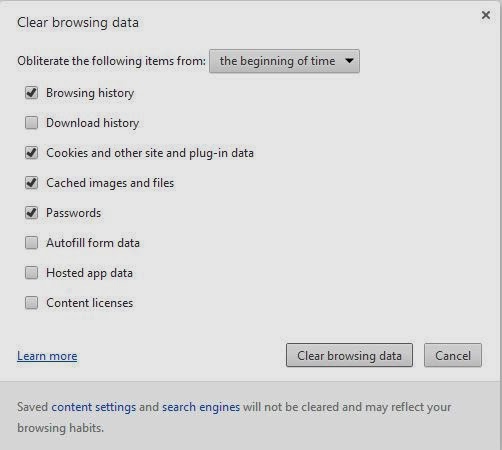


#6 Ensure that the following items are checked: 'Browsing history' and 'Cookies and other site and plug in data'.  (NOTE:  You can choose to select and delete other items such as: downloads, passwords, etc... but you don't need to.  The only ones that NEED to be selected are History and Cookies)

#7 Click the button that says 'Clear browsing data'.  You will probably need to wait a minute or so until the data is cleared from the machine.

 And that is all you need to do!  Your history and cookies are cleaned up, and you should be able to successfully run the "new" version of Infinite Campus now.

If you continue to have problems, please don't hesitate to contact me, and I will endeavor to get you back going again.

Happy Birthday Cameron!

Happy Birthday to my eldest Son!


Hope you have a great day!


Thursday, February 27, 2014

Let's Go Elks!

Since I posted on Tuesday, and we won...I've got to keep it rolling!

Let's Go Lady Elks!
Tonight we face the DRSM Lady Cardinals.  It will be a good matchup and  I'm sure an entertaining game.

Tuesday, February 25, 2014

Let's Go Elks!

No real blog post today, I am miserable with a head cold.

However, tonight is the start of the District Tournament, and the Lady Elks host the O-R-R Raiders this evening at 7 pm.

Let's Go Elks!

Tuesday, February 18, 2014

Tuesday Teacher Tips: Free Technology for Teachers website

I posted about this site once last year, but I thought it would be a good idea to share it again.

Free Technology for Teachers by Richard Byrne

Mr. Byrne is an educator/blogger/ and speaker.  He was the "keynote" speaker at last year's TIE conference in Rapid City.


I would highly recommend following his blog, or if you are a twitter user...you can follow him on twitter, as he is constantly posting his links to his articles on free technology resources.

To be honest, I'm not actually sure how he gets it all done, as he is a teacher, and all his blog updates, and his speaking engagements.

It's a really excellent resource, complete with discussion of many, many different web applications, iPad apps, free guides and favorite resources.

Friday, February 14, 2014

Happy Valentines Day!

And, for tonight...Go Lady Elks!  Let's beat those Arlington Cardinals!

Let's Go Elks!

Tuesday, February 11, 2014

Tests, Testing, and Testers.

With the move of standardized testing going "online" I have been busy installing the new "tester" on several machines.

What I have been  installing is the Smarter Balance Secure Browser 6.3  The icon for this program looks like this:

Basically, what it is...is a "secure browser".  It shuts down your ability to run any other programs on the machine while you are using it.  (to prevent people from cheating).  It connects directly to the smarter balance website, and asks the user to log in with their testing credentials. (username and password)

The program itself isn't difficult to load on the machines, but it takes a little time.  And, I'm happy to say that all the machines in the North Lab, and the Windows 7 lab, have it installed on them.  We have also enabled the SBAC tester on the chromebooks (which was much easier to do...I just authorized that app for all our chromebooks, and BOOM, it was done).

This also required me to take a trip out to Roland colony and make sure the newest browser was installed.

The HS Juniors all need this on their machines as well.  A week or two ago, I did this on the great majority of them.  If there is a Junior HS student who doesn't have this installed, they will need to come and see me, so I can install it on their machine.

Problems will probably arise...they always do with technology.  But hopefully the move to online testing will go fairly smoothly, and it will certainly improve and get better with more experience in using it.  (Both at the state and local level).

At the latest check the tester seems to be working (we had a slight hiccup last week, when the testing site was down for a few days...but that was on Smarter Balance's end of things), and hopefully we are prepared and ready to go when the testing begins.

In our weekly testing coordinators update, they did ask for people to begin "practicing"  (See paste below)
 "Secure browser installation – please try to get the secure browsers installed this week so you can have as many students as possible try the training test next week. "
 
We have the browser installed, so check with Ms. Bogue as to when you can begin a "practice" session.