Thursday, April 24, 2014

One of those days... and a neat video from the Juniors!

First, Mrs. Harming's Junior History class did a neat video of the Gettysburg Address.


Very Good Job Juniors and Mrs. Harming!

And... because every time I turned around today something was in need of some fixing...a little Toad the Wet Sprocket.


Wednesday, April 16, 2014

Another "Makes Me Feel Old" Post

This is really quite good.

Kids React to Walkman - Video

On one hand its funny to see the kids of today struggle with the technology of my youth.

On the other hand, it's really quite something to think about, how quickly time flies... and how fast Technology advances.

Enjoy!


Tuesday, April 8, 2014

Google Calendar: Scheduling the Mobile Labs

In the past few weeks, you may have gotten an e-mail from me inviting you to use Google Calendar (if you previously were not signed up for this service).

With our K12 credentials, the state has given us all Google Accounts, and we have talked before about some of the google products we can use, such as google Drive.

Google Calendar is simply another tool we can use.  It's simple, and it's easy, and we can all access Google Calendars from our own computers.

After discussing this with the Tech committee, we decided to move the Calendars for the Mobile Labs to an "Online" Calendar... so that way, we can find them, and sign up for them directly from your own computer.  No more sending someone down to the lab to see who signed up for it last.
(Also, no more having to go anywhere to sign up for it yourself...you can simply sign up for it from your own desk.)

The following screencast (which I recorded on Screenr) will walk you through the steps of how to log into your Google Calendar account, and how to schedule the mobile lab.  Several people are already doing this, and it seems to be working pretty well.


If you are having trouble
A. Signing into your google account
B. Scheduling the lab
C. or anything else (maybe the lab isn't 'shared' with you?)
Please let me know, and I will try to walk you through it, and help you in any way that I can.

Thursday, April 3, 2014

Will Wheaton- Video...had to share

I loved this so much, I had to post the video.


Please share with any and all students, and other teachers!

WHEATON!

Thursday, March 20, 2014

Office 365 Sharing issues - Integrating Technology Website

I know that previously there has been some sharing issues with office 365 between users with Office 365.  Dan Robbins and I have been in contact with the state about this issue, and this was what we have heard back from them ... (It has been working in Internet Explorer, but not in chrome)... this was the recommendations of the state, that I am copying and pasting below...

Microsoft is switching their product to be named “OneDrive” instead of “SkyDrive” so you’ll see that change across the board.

Since it sounds like the issue is browser-specific  (Chrome) and only one the one computer, you can do the following testing if you’d like:
1)      On the Chrome menu, select Settings.
2)      On the settings page, click Extensions.
3)      Please disable all Extensions (by unchecking the box next to enable)
4)      Exit and restart Chrome
5)      Return to the Extensions page to make sure they are still disabled
6)      Log back in to Office 365, and see if the problem continues to occur.

If everything appears to be working fine in Office 365, you can enable each extension one by one (testing Office 365 after each) to try to figure out if one of them is causing the issue.

So It appears that sharing issues could be related to extensions in the chrome browser?  

Something for you to try anyway, if you are having any sharing issues.

Also, this website was shared among the Tech Director Listserv last week...and I looked at it....and there are ALOT of Technology resources listed on here.  (too many to discuss each individually)... please feel free to check it out.... there is common core stuff on there as well!

http://www.willoughby-eastlake.k12.oh.us/classroom/technology/


Monday, March 3, 2014

Campus Update: Clear your browsing history.

This past weekend, Infinite Campus, ran an upgrade and to be able to log in and use the "new" version of the website, they have asked that users clear their browsing history and cookies.

I have helped a few staff members do this already this morning, but just in case you haven't done it yet, and you would like to do it yourself (It's not difficult), I thought I would lay out the steps needed in this blog post.

 I am going to show the steps in google chrome.  The chrome browser seems to be working with this update.  I had a teacher try Internet explorer earlier, and it wouldn't work...we tried chrome, and were successful.  However, there is a similar procedure for Internet explorer.

#1  Go click on the menu button (top right of your screen) in the chrome browser.

The Little Box with the 3 Horizontal lines is the menu button
 #2 Go down the drop down list, and select "Settings".  This should bring up the Settings in a separate tab.

#3 On the top left of the page, select the History button.


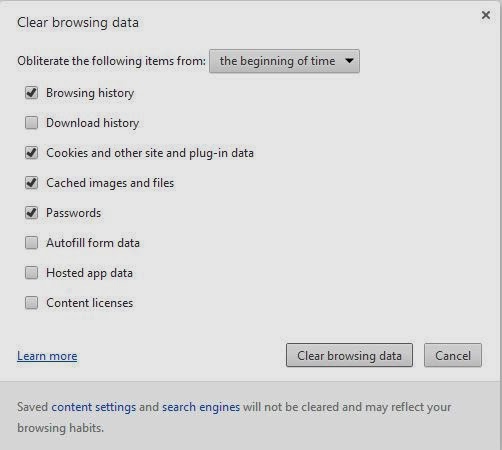
#4 Near the top, on the main page click the "Clear Browsing Data" button.  This will bring up a "pop up" window for clearing your browser data.


#5 In that window, select the drop down for 'Obliterate the following items from:' and select the option 'the beginning of time'.


#6 Ensure that the following items are checked: 'Browsing history' and 'Cookies and other site and plug in data'.  (NOTE:  You can choose to select and delete other items such as: downloads, passwords, etc... but you don't need to.  The only ones that NEED to be selected are History and Cookies)

#7 Click the button that says 'Clear browsing data'.  You will probably need to wait a minute or so until the data is cleared from the machine.

 And that is all you need to do!  Your history and cookies are cleaned up, and you should be able to successfully run the "new" version of Infinite Campus now.

If you continue to have problems, please don't hesitate to contact me, and I will endeavor to get you back going again.

Happy Birthday Cameron!

Happy Birthday to my eldest Son!


Hope you have a great day!