In the past few weeks, you may have gotten an e-mail from me inviting you to use Google Calendar (if you previously were not signed up for this service).
With our K12 credentials, the state has given us all Google Accounts, and we have talked before about some of the google products we can use, such as google Drive.
Google Calendar is simply another tool we can use. It's simple, and it's easy, and we can all access Google Calendars from our own computers.
After discussing this with the Tech committee, we decided to move the Calendars for the Mobile Labs to an "Online" Calendar... so that way, we can find them, and sign up for them directly from your own computer. No more sending someone down to the lab to see who signed up for it last.
(Also, no more having to go anywhere to sign up for it yourself...you can simply sign up for it from your own desk.)
The following screencast (which I recorded on Screenr) will walk you through the steps of how to log into your Google Calendar account, and how to schedule the mobile lab. Several people are already doing this, and it seems to be working pretty well.
If you are having trouble
A. Signing into your google account
B. Scheduling the lab
C. or anything else (maybe the lab isn't 'shared' with you?)
Please let me know, and I will try to walk you through it, and help you in any way that I can.
Showing posts with label Screenr. Show all posts
Showing posts with label Screenr. Show all posts
Tuesday, April 8, 2014

Thursday, December 19, 2013
Screencast: How to begin editing your state webspace
Here is a brief (very brief), screencast, on how you can log in to your state provided webspace.
Note: I don't go into much detail here on web editing here. Just how to log in, and that type of thing.
When it comes to web editing, I would recommend "playing". It's ok to experiment and work on new things and ideas.
Another helpful hint, is to look at other staff members pages, and if you see something you like....ask them how they did that?
And of course you can always ask me specific questions on "how to" do this, or that.
There is so many things that could be covered in a vast subject like this a 5 minute screenr video, won't even come close to scratching the surface.
(Note: My son Cameron, just took a Semester Long online course on Web Editing...So he worked on building a web page for an entire semester.)
Here is what his page looks like: http://ch3661.k12.sd.us/default.htm
I hope this short video at least helps a few of you "get started" and be able to start doing some basic work.
Note: I don't go into much detail here on web editing here. Just how to log in, and that type of thing.
When it comes to web editing, I would recommend "playing". It's ok to experiment and work on new things and ideas.
Another helpful hint, is to look at other staff members pages, and if you see something you like....ask them how they did that?
And of course you can always ask me specific questions on "how to" do this, or that.
There is so many things that could be covered in a vast subject like this a 5 minute screenr video, won't even come close to scratching the surface.
(Note: My son Cameron, just took a Semester Long online course on Web Editing...So he worked on building a web page for an entire semester.)
Here is what his page looks like: http://ch3661.k12.sd.us/default.htm
I hope this short video at least helps a few of you "get started" and be able to start doing some basic work.
Tuesday, November 12, 2013
Tuesday Teacher Tips: Thinglink
First of all congratulations to both the Elkton-LB Football and Volleyball teams.
Both had great regular seasons, and enjoyed a post season victory before their seasons ended. Each team should be proud of the way they played, and the way that they represented our community.
With the end of the fall season sports: CC, VB, FB...that means we will begin the winter sports season...which means BB.
I have been working with the 5th graders for a few weeks now. Coach Erickson started some of his open gyms yesterday, and the Girls BB team will have their first open gyms of the year tonight. Let's hope the determination and success of the fall sports rub off on our basketball teams!
On to today's subject: Thinglink
What is Thinglink.com? Well, for the answer to that...let's see what the actual website says about that.
"ThingLink helps you create and discover rich images.
Both had great regular seasons, and enjoyed a post season victory before their seasons ended. Each team should be proud of the way they played, and the way that they represented our community.
With the end of the fall season sports: CC, VB, FB...that means we will begin the winter sports season...which means BB.
I have been working with the 5th graders for a few weeks now. Coach Erickson started some of his open gyms yesterday, and the Girls BB team will have their first open gyms of the year tonight. Let's hope the determination and success of the fall sports rub off on our basketball teams!
On to today's subject: Thinglink
What is Thinglink.com? Well, for the answer to that...let's see what the actual website says about that.
"ThingLink helps you create and discover rich images.
Be creative! Make your images come alive with music, video, text, images, shops and more!
Every image contains a story and ThingLink helps you tell your stories. Follow image channels from your favorite bands, bloggers and friends. Your ThingLink interactive images form a channel that other users can follow.
Share your channel with friends on Facebook and Twitter, and follow your friends. Touch and discover."
So basically, it is a way to make pictures and graphics interactive!
Could be a very interesting way to make assignments/projects "come to life".
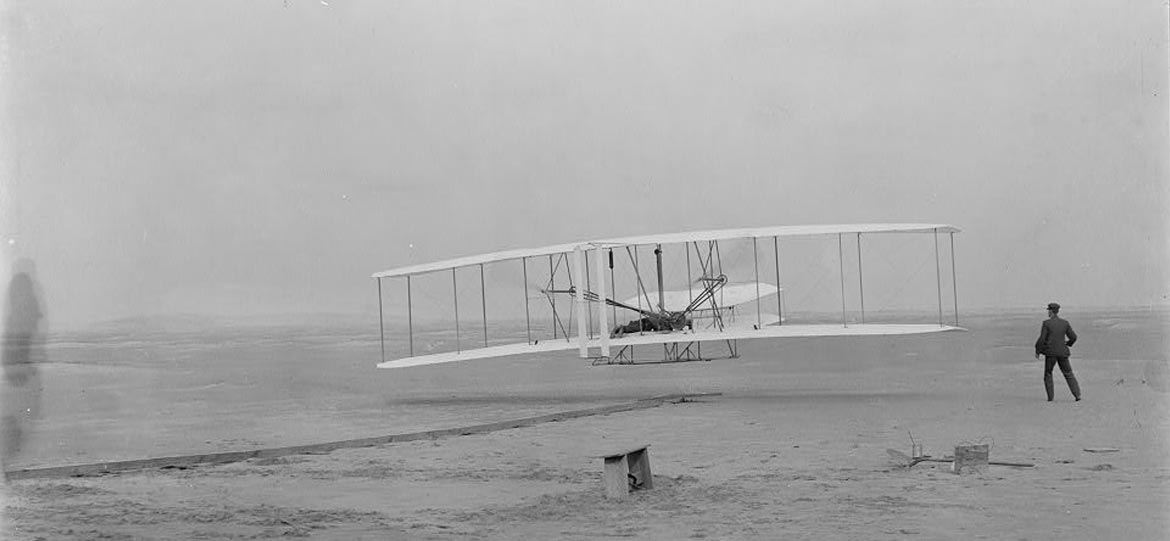
For example...here is a photo of the Wright Brothers that was posted on the Thinglink website.
As you can see (if the embed code worked in the blog), this picture has an audio clip attached to it, a video clip, and 3 text information boxes as well.
Much like previous subjects we covered like: Instagrok, Simple Booklet, and Screenr... Thinglink is a web based application that you can use to "spice up" your assignments/projects and get your students creativity flowing!
As always... Thinglink, as well as the other sites mentioned here, are saved on my "Delicious" Social Bookmark. You don't need to bookmark all of them (unless you really want to)...just bookmark my Delicious page.
(An aside...a great way for you to keep all the links handy for all your classes in to create your own "Delicious" page...and then make your students save the link to your page in their favorites...that way they can always find the site you are pointing them to)
ONE LAST ANNOUNCEMENT:
I will be out of the office Thursday and Friday this week. My wife is attending a training in Rapid City and I will be taking some vacation time (before basketball starts). So, for Elkton Staff, I will be gone Wednesday to Lake Benton like usual, but will be out of the office for the rest of the week.
Thanks for your attention, and I hope some of you decide to give "Thinglink" a shot!
Tuesday, October 29, 2013
Office 365 - logging in
Here is a short screencast on how to log in to Office 365 with your K12 login credentials.
The login screen for 365 is HERE.
I hope you find this informative and helpful.
The login screen for 365 is HERE.
I hope you find this informative and helpful.
Thursday, October 24, 2013
Screencast: Change your state e-mail password.
I used Screenr to make a short "screencast" that shows you how to change your state e-mail password.
Tuesday, October 8, 2013
Tuesday Teacher Tips: Screenr
It's Back! Tuesday Teacher Technology Tips!
(don't roll your eyes at me... I saw that!)
Today's Website for your consideration is: Screenr

What Screenr is, is basically a Screen Recording Application....similar to things like Camtasia and Adobe's Captivate program.
So why use Screenr? Well...it's a web based program and application.... you don't need to install ANYTHING on your computer.
For Example, here is a short video on "How To Flip Images within Powerpoint"
So, What are some possible uses for screenr in the classroom?
Note: Screenr and Other Websites of Note are located on my Delicious Bookmark Page.
-If you find a neat site that you would like others to know about... send me the link, and I will add it to the Delicious page.
And Just for the heck of it...how about a little Rock and Roll on this Tuesday Morning.
The Gaslight Anthem is one of the greatest bands in the world, that most people don't know about.
Enjoy "The '59 Sound"
(don't roll your eyes at me... I saw that!)
Today's Website for your consideration is: Screenr
What Screenr is, is basically a Screen Recording Application....similar to things like Camtasia and Adobe's Captivate program.
So why use Screenr? Well...it's a web based program and application.... you don't need to install ANYTHING on your computer.
For Example, here is a short video on "How To Flip Images within Powerpoint"
So, What are some possible uses for screenr in the classroom?
- Demonstration of "How To" do something on your computer.
- Long Term instructions of "How To" do things that are often repeated
(I should do one of these for changing your state e-mail password) - Going over expectations for an assignment.... Show the students exactly what you want the final product to look like, how they should turn it in, etc, etc. Send the link of the screenr video to them, and they always have them.
- Have the Students Use Screenr! - have them make a short video showing how they do something, or showing how they got their answer, or explaining their sources, or...???
Screenr is a very simple and easy program/application to use... take some time and play around with it.
Make your assignments and instructions lively by including videos!
Note: Screenr and Other Websites of Note are located on my Delicious Bookmark Page.
-If you find a neat site that you would like others to know about... send me the link, and I will add it to the Delicious page.
And Just for the heck of it...how about a little Rock and Roll on this Tuesday Morning.
The Gaslight Anthem is one of the greatest bands in the world, that most people don't know about.
Enjoy "The '59 Sound"
Subscribe to:
Posts (Atom)